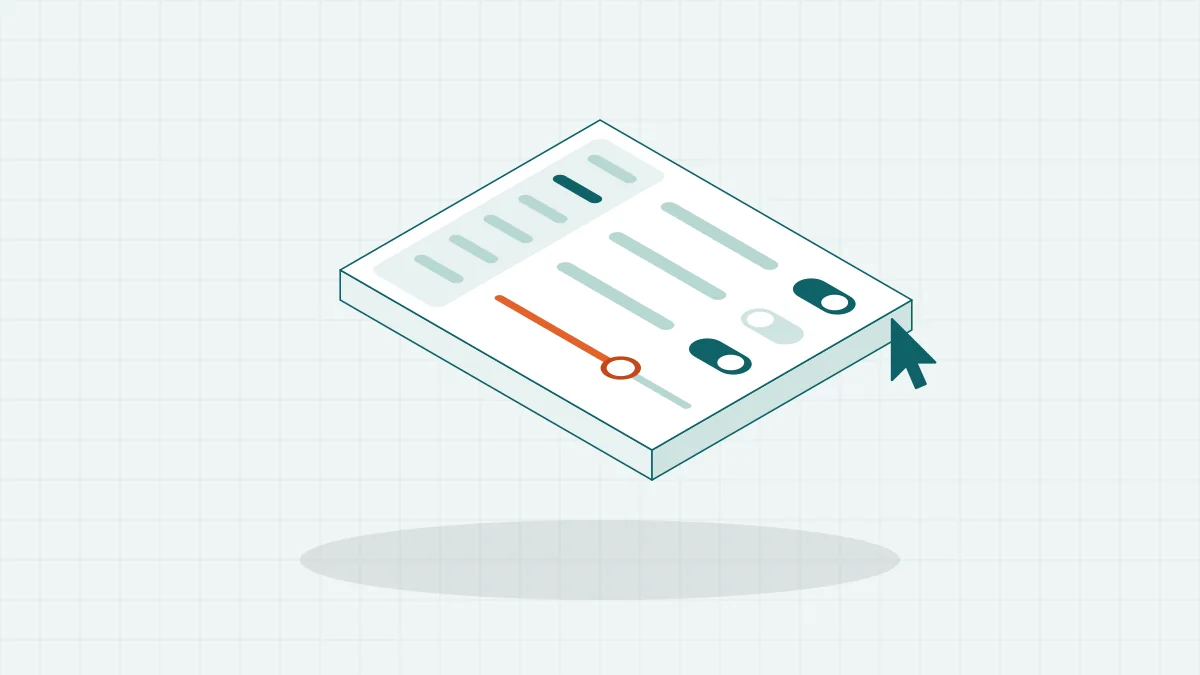
“Bloxstrap Menu” vs Bloxstrap Settings
Older versions had a configuration window called the Bloxstrap Menu with its own Start menu shortcut. Version 2.8.0 reorganised things:
- The configuration window was renamed Bloxstrap Settings, or simply Settings.
- Running Bloxstrap directly now opens a small launch menu instead of starting Roblox straight away.
- By default there's a single “Bloxstrap” shortcut that opens that launch menu; you can add dedicated shortcuts for Settings or launching Roblox.
So when an older tutorial says “open the Bloxstrap Menu”, today that means opening Settings from the launch menu. Exact labels can differ slightly between versions and languages.
The launch menu
The launch menu is the first thing you see when you open the Bloxstrap shortcut. It offers to launch Roblox or open Settings, and since v2.11.0 it also has a “Launch Roblox Studio” option that makes Bloxstrap your Studio bootstrapper. Version 2.11.0 also added buttons linking to the Bloxstrap wiki and the project's Roblox community. Pressing Tab jumps straight to the Launch Roblox button.
Integrations
This tab controls everything that happens while you play:
- Activity tracking — the background process that detects which experience you're in. It's required for the three features below.
- Discord Rich Presence — shows the experience on your Discord profile, with an option to show your Roblox account.
- Server location hints — a notification with the approximate server location.
- Custom integrations — launch other programs automatically alongside Roblox.
Related behaviour like “Don't exit to Desktop app”, which closes Roblox fully when you leave a game, also depends on activity tracking.
Mods
The Mods tab offers presets for common changes such as fonts and mouse cursors, and a button to open the mods folder (Bloxstrap\Modifications). Anything in that folder is copied over the Roblox client on every launch, so it must mirror Roblox's own folder structure. Mods can break when Roblox updates, and if two mods replace the same file, the last one copied in wins.
Engine settings (formerly Fast Flags)
Version 2.8.0 renamed “Fast Flags” to “Engine Settings” to better describe what they do for most players. This is the tab that changed most in 2025: Roblox now only honours Fast Flags on its allowlist, so v2.10.0 removed presets that stopped working. What remains includes options such as preserving rendering quality on high-DPI displays and exclusive fullscreen behaviour. Version 2.11.0 unhid the Fast Flag editor with a warning about the allowlist, and there's an option to reset your flag configuration to defaults.
The Fast Flags article explains the allowlist in full.
Appearance
Appearance covers how Bloxstrap itself looks: the bootstrapper style used for the launch window, its icon and title text, and — since v2.9.0 — custom themes. Version 2.8.1 added the option to use the classic Bloxstrap logo in the bootstrapper.
Bootstrapper and Bloxstrap tabs
Version 2.8.0 split the old “Behaviour” tab into two smaller tabs. Bootstrapper holds options about how Roblox is launched and updated. Bloxstrap holds options about the app itself, including the analytics toggle — analytics are on by default since v2.8.0. Since v2.8.1 Settings can also export diagnostic data, which helps if you report a bug.
Shortcuts, saving and advanced launch options
The Shortcuts tab creates or removes desktop and Start menu shortcuts. Across all tabs, changes apply only when you press Save; closing with unsaved changes triggers a warning, and the window remembers its size and position.
Power users can also launch Bloxstrap with arguments — v2.9.0 added -version, -channel and -force. Most people never need them.
New to Bloxstrap? Start with the installation walkthrough, then come back here.
Related reading
Bloxstrap Fast Flags after Roblox's allowlist
How Roblox's 2025 Fast Flag allowlist changed Bloxstrap's engine settings, which presets were removed, what still works, and why old FPS and graphics flag lists fail.
How to install Bloxstrap on Windows
Install Bloxstrap safely on Windows: where to download it, the .NET 6 runtime, installer options, first-run settings and the launch-handler step most people miss.
Bloxstrap not working? Fixes for common problems
Fix Bloxstrap problems step by step: Roblox opening without Bloxstrap, nothing happening on launch, crashes, ignored engine settings, missing Discord status and access errors.